
Updated in version: 2016.4.2.0
The Receive cash form allows you to perform partial and full payments.
To receive cash
- Transactions > Cash transactions > Receive cash.
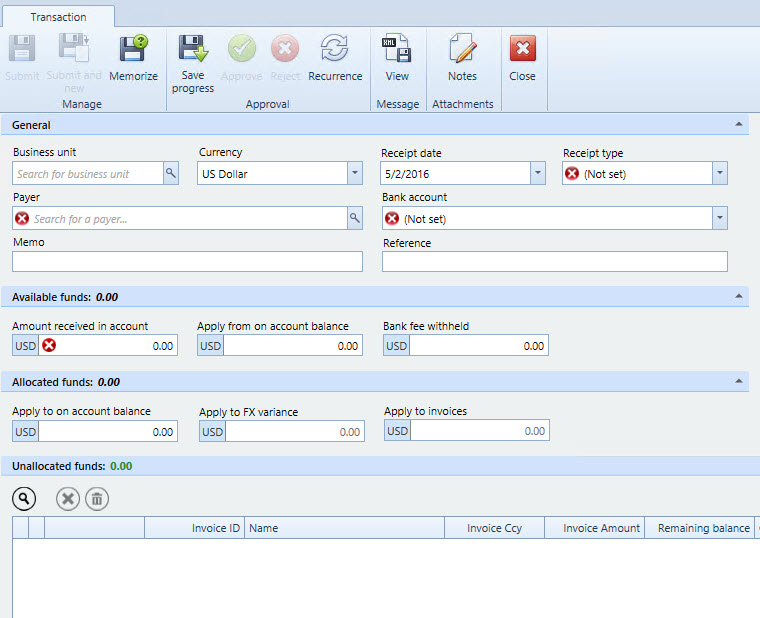
- Enter the Currency, Payer, Receipt type and Bank account.
- Under Unallocated funds, click the magnifying class. A pop-up window will appear.
- Select the Client. Unpaid invoices list will automatically populate with outstanding invoices for the selected client.
- To select an invoice to pay, double-click the invoice. The value under the column Selected will change to Yes and the invoice will be highlighted.
- Click Close. The selected invoice will display in the Unallocated funds list. You will now be able to make a partial payment or full payment of the invoice.

- If you would like to pay the full amount, enter the amount under Amount received in account and then click the Pay in full button. Clicking the Pay in full button will automatically populate the Apply to invoices field.
- If you would like to provide a partial payment, click the + button to the left of the Pay in full button to view individual fees. Under the column Amount to pay indicate the amount you would like to pay for each fee. Add the same amount to the column Amount received in account.
 The Unallocated funds must balance (equal 0) in order to submit the transaction. The Apply to FX variance field will be able for use in a future release. There may be cases where you receive more money than the invoice. You can add that amount to Apply to on account balance, which will clear the unallocated funds (effectively giving a credit). The next time there is an invoice to pay, you can add your credit to Apply from on account balance to reduce the invoice amount.
 - Click Submit.
- Click Client administration > Lists > Unposted transactions.
- Locate and right-click the item. Select Approve.
- To review, click Time and billing > Lists > Invoices. The Payments applied and Balance columns will now update with the current information. If you have paid the invoice in full, the Payment status should change from Unpaid to Paid.
See also
Comments
0 comments
Please sign in to leave a comment.