
- Invoicing 1: Prerequisites (fees, document templates, invoicing by business unit)
- Invoicing 2: Time entries, charges, recurring, stub payments, prepayment
- Invoicing 3: Review time records
- Invoicing 4: Transfer WIP to billing, prepare and post invoices
- Invoicing 5: Review and pay invoices
Review the invoice
The invoices list provides a view of all generated invoices and their payment status of Paid or Unpaid. From this list you can create, view and print invoice documents.
- Click Financial management > Lists > Invoices.
- Click Find all.
- Locate the invoice and review.

 The upper pane Invoices displays invoices and disbursements along with their Payment status. The lower pane Invoice details displays the entries that were included in the selected invoice.
Accounts receivable
On a company's balance sheet, accounts receivable are recorded as an asset because this represents a legal obligation for the customer to remit cash for it's short term debts.
- Click Financial management > Lists > Accounts receivable.

- Double-click an item in the list to view the details of a transaction. You can determine the age of outstanding amounts, total amount owing by a client or all outstanding amounts per Account representative. Accounts receivable shows all fees due to the MI. See Accounts receivable (list) for further details.
To pay an invoice
There are two forms that can be used to pay for invoices, depending on if client accounting is active:
- Make bill payment: Used if you are responsible for the accounting for your clients. (client's Properties > Information > General > Accounts required? is checked).
- Receive cash: Used if you are not responsible for client accounting (Transactions > Cash transactions > Receive cash). Can be used to pay for disbursements.
Make bill payment
- Navigate to the Make bill payment form using Quick launch.
- Select the client you are making a bill payment for.
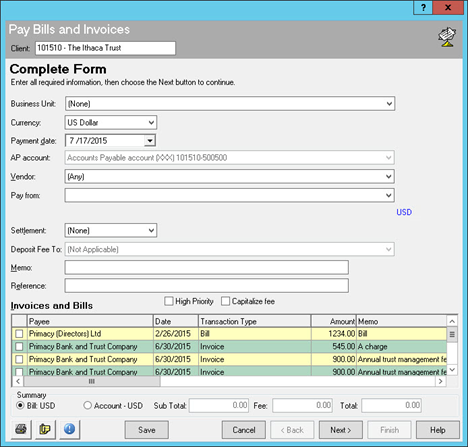
- In Currency, select the currency for the payment.
- In Pay from, select the account in which you would like to pay the invoice.
- In Settlement, select the settlement method.
- In Memo, enter any details regarding the payment.
- Under Invoices and Bills, select each checkbox for the invoice(s) you would like to pay. The Total field will automatically populate based on the invoices selected.
- Click Next >.
- Click Finish.
To approve a transaction
Once transactions have been submitted they must be approved.
- Click Client administration > Lists > Unposted transactions.
- Locate and right-click the transaction. The transaction should have a Status of Waiting for Approval.
- Click Approve.
Receive cash
- On the Transactions menu, click Cash transactions > Receive cash.

- In Business unit, select the applicable business unit for the transaction.
- In Currency, select the applicable currency for the transaction.
- In Bank account, select the account in which the payment will be taken from.
- In Payer, select the business party that will be making the payment.
- In Amount, enter the amount you would like to pay.
- Click the Find invoices to pay lookup under the heading Invoices that will be paid by this cash receipt(0).

- In Client, select the client who has outstanding invoices in which you need to pay. All outstanding invoices will appear under the heading Unpaid invoices.
- Select the invoice(s) you would like to pay. Click the plus button to add an invoice one at a time or click the >> button to add them all. Selected field value will change from No to Yes once the invoice has been added. The Receipt amount must equal the Allocated amount in order to balance the transaction. If the amounts do not balance there will be a variance in Unallocated. You can increase or decrease the Amount that you had entered in the previous screen in order to balance the transaction and submit it.
- Click Submit.
The transaction must now be approved. See To approve a transaction for more information. Once the transaction has been approved the following will also be updated:
- Invoices list: Payment status of the invoice will change from Unpaid to Paid.
- Accounts receivable list: The accounts receivable entry will be removed from the list.
Comments
0 comments
Please sign in to leave a comment.