
Released in version: 2016.4.1.0
Updated in version: 2016.5.2.0
Client approved services can be used when you require compliance to be performed when adding a fee to a client.
To enable client approved services
- Click Settings > Lists > Application configuration > System properties.
- Locate and double click the Enable client approved services system property.
- In Value, enter Yes.
- Click Save and close.
- Exit and re-start Primacy Workplace.
To add client approved services
- Click Compliance > Tasks > Add authorized service.
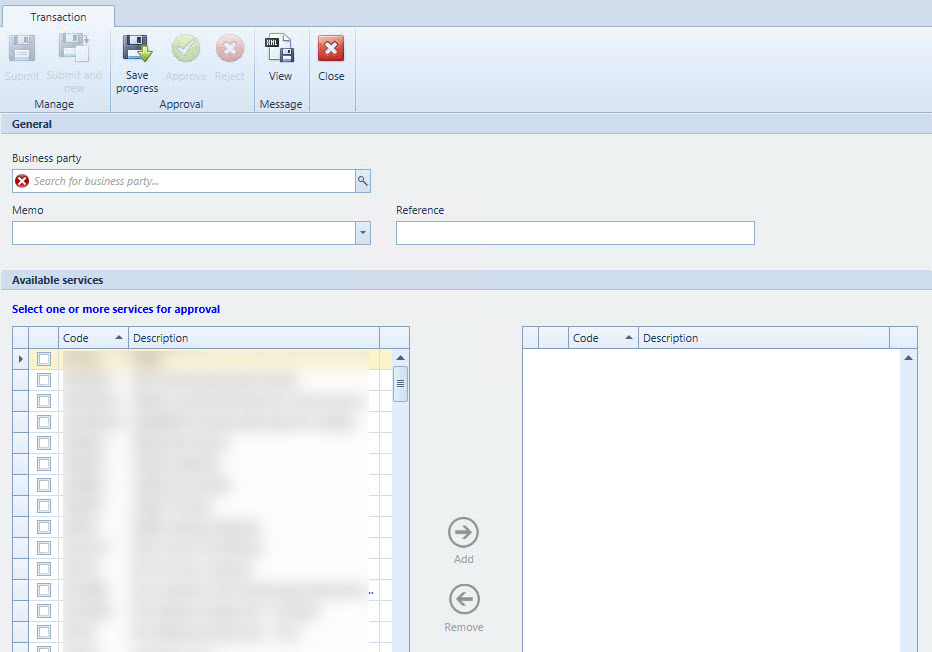
- In Business party, select the client you would like to add the approved service(s) to.
 You may also add a Memo or Reference for your own records.
 - Under Available services, click the checkbox next to the fee you would like to add.
- Click Add to add the fee to the client. To remove a fee once it is in the Added column, click the checkbox next to the fee and click Remove.
- When complete, click Submit. Once you click Submit, the status of the business party will change to Pending 1st compliance approval.
- Click Client administration > Lists > Unposted transactions.
- Locate and right-click the approved services transaction and select Approve. If you Reject or Delete the transaction, the Client status will revert back to it's previous status, for example, from Pending 1st compliance approval to Active.
To cancel client approved services
- Click Compliance > Tasks > Cancel authorized service.
- In Business party, select the client you would like to work with. You may also add a Memo or a Reference for your own records.
- Under Available services, click the checkbox next to the fee you would like to remove from the approved services.
- Click Remove to remove the fee from the approved services.
- When complete, click Submit.
- Click Client administration > Lists > Unposted transactions.
- Locate and right-click the approved services transaction and select Approve.
To enable the Client approved services list
- Click Settings > Lists > Application configuration > System properties.
- Locate and double click the Show client approved services list system property.
- In Value, enter Yes.
- Click Save and close.
To view the Client approved services list
In order for this list to display, the system property Show client approved services list must be set to Yes.
The Client approved services list within a client's properties displays all the approved fees for the client.
- Click Client administration > Lists > Clients.
- Locate and double-click the client you would like to work with. You may also right-click the client and select Properties.
- Click Compliance > Client approved services tab.
You may also view the Global Client approved services list by navigating to Quick launch and searching for Client approved services.
Comments
0 comments
Please sign in to leave a comment.