
Updated in version: 5.47
You can send messages to other employees or even a whole company through Primacy Workplace. Additionally, you can reply to those messages to Workplace.
To send a message
- Click Client administration > Lists > View online messages.
- Under Message threads, click New message.
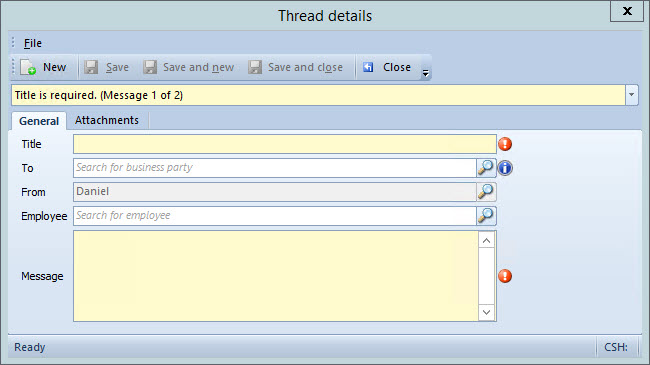
- In Title, enter a title for the message you will send.
- To send a message to the entire company, in To, select a company.
- To send a message to every user on the system leave the To field blank.
- To send a message to a specific employee, in To, select a company. Then, in Employee, select a user.
- In Message, type the message you'd like to send.
 To include an attachment, click the Attachments tab. Right-click the list and select Add attachment.
 - When complete, click Save and close.
The Thread details will close. After sending an initial message, a message thread will be created and will display under Message threads.
To start a new message thread, click New message.
To view the individual messages within a message thread, click the thread under Message threads. The contained messages for that thread will display in the Messages list below.
To reply to a message
- Click Client administration > Lists > View online messages.
- Under Messages, locate and right-click the message and select Reply. You may also select the message by clicking it once and clicking the Reply button.
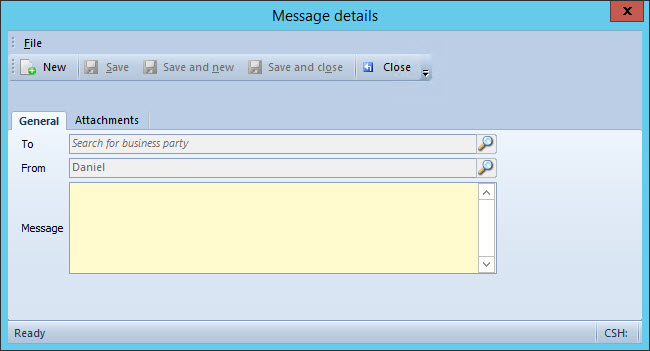
- In To, select the business party you would like to reply to. The From field will default to the logged-in user.
- In Message, enter what you would like to reply with. To include an attachment, click the Attachments tab. Right-click the list and select Add attachment.
- When complete, click Save and close.
See also
Comments
0 comments
Please sign in to leave a comment.