
Released in version: 5.47
Updated in version: 2016.4.1.0
There are three workflow rights that control a user's ability to view, edit, or delete the Payment details tab in the Properties of a Contact:
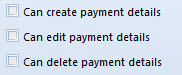
If unchecked, when an employee views a contact's Payment details, the Add bank details and Delete buttons will be disabled.
If unchecked, when an employee double-clicks a record in the Payment details list, they will not be able to save any changes.
To view the tab
- Click Client administration > Lists > Contacts.
- Locate and double-click the contact you'd like to view.
- Click the Payment details tab.
To set the workflow right to create/ view payment details
- Click Settings > Lists > Organization setup > Employee roles.
- Locate and double-click the employee role you would like to work with.
 You may also right-click the employee role and select Properties.
 - Click the Workflow rights tab.
- Locate and click the Can create payment details checkbox. To disable, uncheck the Can create payment details checkbox.
- Click Save and close.
To set the workflow right to edit payment details
- Click Settings > Lists > Organization setup > Employee roles.
- Locate and double-click the employee role you would like to work with. You may also right-click the employee role and select Properties.
- Click the Workflow rights tab.
- Locate and click the Can edit payment details checkbox. To disable, uncheck the Can edit approve payment details checkbox.
- Click Save and close.
To set the workflow right to delete payment details
- Click Settings > Lists > Organization setup > Employee roles.
- Locate and double-click the employee role you would like to work with. You may also right-click the employee role and select Properties.
- Click the Workflow rights tab.
- Locate and click the Can deletepayment details checkbox. To disable, uncheck the deletepayment details checkbox.
- Click Save and close.
Comments
0 comments
Please sign in to leave a comment.