
Released in version: 5.46
Within the properties of a fee calculation, you may add a security and create a specific fee calculation for that security. At the same time, you may add a security to a fee calculation and chose to waive that specific security.
To add or waive a fee for a security
- Click Client administration > Lists > Clients.
- Locate and double-click the client you'd like to work with.
 You may also right-click the client and select Properties.
 - Click Fees > Recurring fees.
- If you would like to complete this with a new recurring fee, click Add recurring fee. If you would like to complete this with an existing recurring fee, locate and double-click a recurring fee in the list. then skip to step 7.
- Enter values as you see fit.
- Click Submit. Once you have submitted the recurring fee, three new tabs will appear: Invoicing, Deferred fee income, and Fee calculations.
- Click the Fee calculations tab.
- Click Add fee calculation.
- Enter values in the fields as you see fit.
- In the Security field, select the security you would like to add to the fee calculation.

- Below, in the Tier maintenance list, enter a To value and an Amount value.
- Press Enter on your keyboard.
- To waive the security's fee calculation, but still have the security attached to the fee calculation, click the Waive fee? checkbox at the top of the form.

- Click Save.
- The Set effective date screen will appear. In the dropdown, select the date for the changes to take effect.
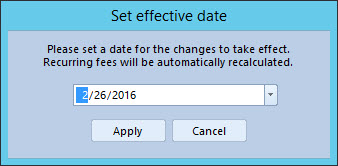
- When complete, click Apply.
- You will be returned to the Fee calculation screen. Click Close. This will return you to the Recurring fee form.
- When complete, click Accept.
- A confirmation screen will appear. Click Yes.
Comments
0 comments
Please sign in to leave a comment.