
Activities are used as reminders or diary notifications so that we may schedule tasks and perform regular processes. Activities are available for all client types (Company, Trust, Foundation, Fund, Partnership, Individual/Joint). They are also available for the Master institution.
To allow activities to be set for a specific number of days on the dashboard
- Click Settings > Lists > Application configuration > System properties.
- Locate and double-click the Dashboard - maximum days of activities system property.
- In Value, enter the maximum number of days for activities to display.
- Click Save and close.
- Close and restart Primacy Workplace for the changes to take effect.
To display unfinished activities on the dashboard
- Click Settings > Lists > Application configuration > System properties.
- Locate and double-click the Dashboard - show activity list system property.
- To display the unfinished activities, in Value, enter Yes.
 To disable unfinished activities from displaying, enter No.
 - Click Save and close.
- Close and restart Primacy Workplace for the changes to take effect.
To create an activity
- Click Client administration > Lists > Clients.
- Locate and double-click the client you would like to work with. You may also right-click and select Properties.
- Click the Activities tab.
- Click the Create an activity button.
- Enter values in the fields where appropriate. See Activities (form) for more details.
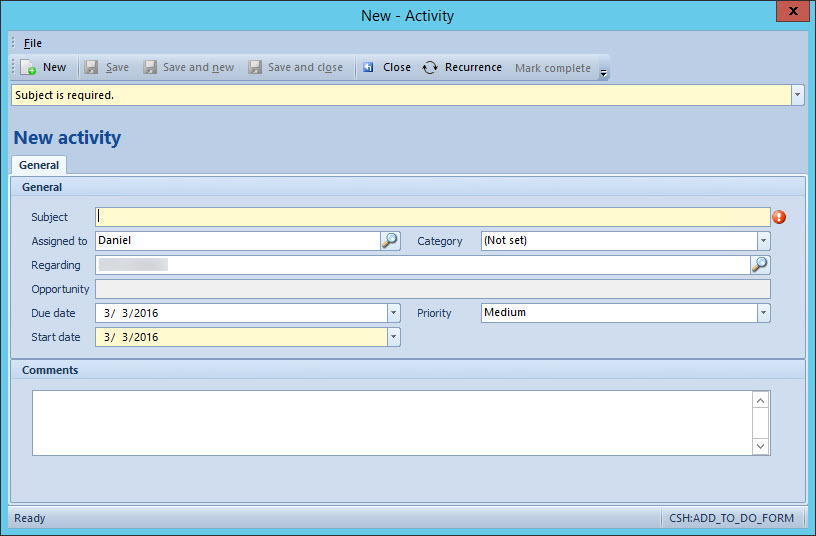
- Click Save and close.
To assign activities
The following setting will allow or prevent a user from assigning the activity to another user.
- Click Settings > Lists > Organization setup > Employee roles.
- Double-click the role you wish to work with. You may also right-click and select Properties.
- Click the Workflow rights tab.
- Click the Can reassign client activities checkbox. If it is already selected, do not change.
- Click Save and close.
To review activities
When an activity has been created it will appear against the client or in a list under a client's Properties > the Activities tab. Activities can be filtered with the selection boxes provided. Some activities are system generated and these will show with Primacy in the Created by field and the description will read Primacy Generated Activity.
Certain processes will automatically generate activities. For example, annual returns and other automated system processes may create both a Deadline and an Activity for the same process. It is further possible to save attachments to activities and add custom fields. These tabs become available only when the Activity has been created and saved.
To mark an activity as complete
When an activity has been dealt with, it can be marked as Complete. This can be done by right-clicking on a selected activity in the list, or selecting the appropriate menu item from the Actions combo box. A completed activity will be marked with Yes in the Complete? field.
Verify the employee role is able to delete activities
The right to delete an activity is subject to an Employee role.
- Click Settings > Lists > Organization setup > Employee roles
- Click the Workflow rights tab
- Click the Can delete client activities checkbox. To disable the ability to delete an activity, de-select this checkbox.
- Click Save and close.
Delete the activity
Only non-Primacy generated activities may be deleted.
- Click Client administration > Lists > Clients.
- Locate and double-click the client you'd like to work with. You may also right-click the client and select Properties.
- Click the Activities tab. The Activities list will display.
- Locate and right-click the activity you'd like to delete.
- Select Delete.
Comments
0 comments
Please sign in to leave a comment.