
Released in version: 2016.4.1.0
Securities can be bought and sold in bulk as opposed to processing each transaction individually.
To enable the financial institution for bulk buy and sell
In order for the depository accounts to display on the Bulk buy form, you will have to set the financial institution to do so.
- Click Settings > Lists > Organization setup > Financial institutions.
- Locate and double-click the financial institution you would like to set.
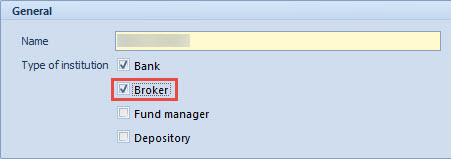
- Under Type of institution, click the Broker checkbox.
- Click Save and close.
 The depository account is held at the master institution. By default, the master institution is only a bank and does not offer the checkboxes for institution type for you to select broker or depository. You may have to create a separate financial institution as a depository for the depository account to be held at.
To buy securities in bulk
- Click Investment management > Tasks > Investment transactions > Bulk buy.
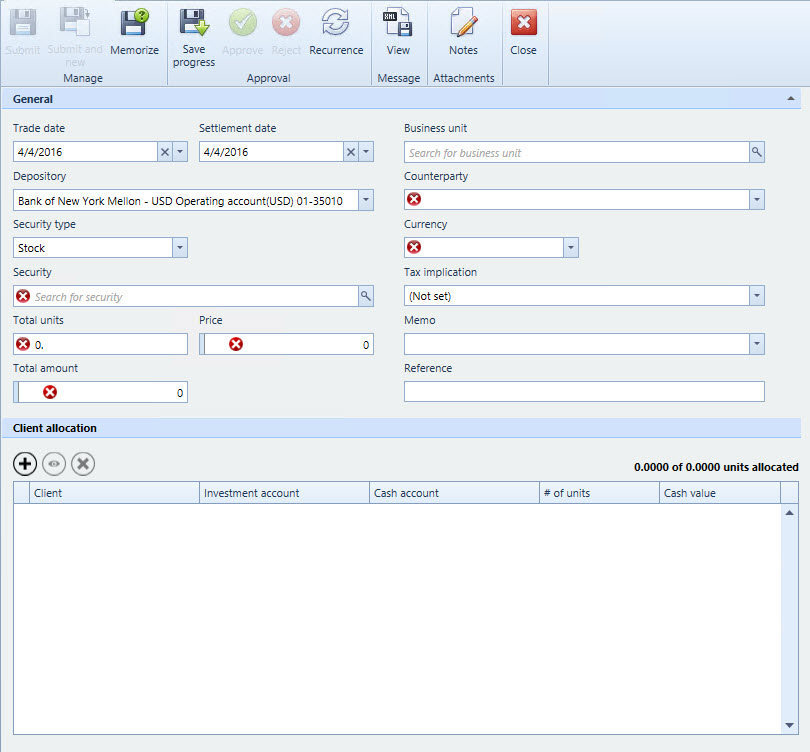
- In Depository, select a depository.
- In Counterparty, select a counterparty.
- In Security, locate and select a security to purchased.
- In Total units, enter the number of units for the transaction.
- In Price, enter a price for each unit. The Total amount field will update depending on the values you enter as you proceed.
- Under Client allocation, click
 to add a client. The Client line item form will display.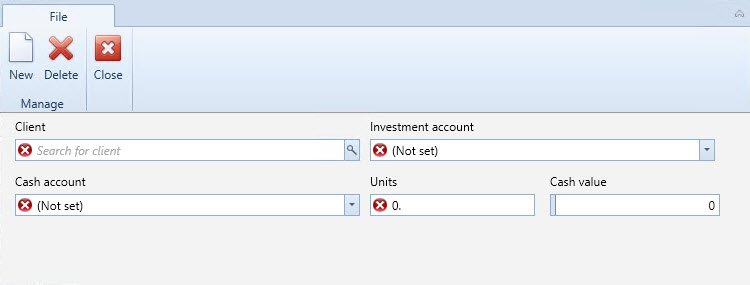
- In Client, locate and select a client for the transactions. The investment accounts and cash accounts will populate with the related accounts.
- In Investment account, select an account.
- In Cash account, select an appropriate account.
- In Units, enter a number of units to purchase for this client. The Cash value field will update. To add another client, click New. The form will clear and you can select a new client and select the corresponding investment and cash accounts, as well as the number of units for that particular client.
- When complete, click Close. The Client line item form will close and the client will appear in the Client allocation list.
- Click Submit.
- Click Client administation > Lists > Unpsoted transactions.
- Locate and right-click the transaction. Select Approve.
To sell securities in bulk
- Click Investment management > Tasks > Investment transactions > Bulk sell.
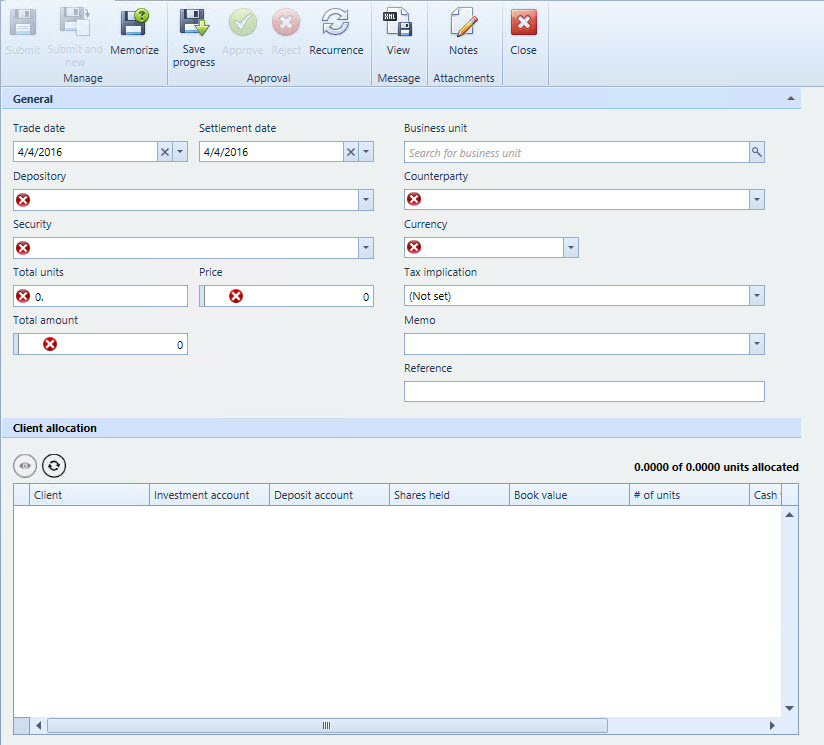
- In Depository, select a depository.
- In Counterparty, select a counterparty.
- In Security, select the security to sell. The clients holding this security will populate in the Client allocation section.
- In Currency, select the currency you would like to work with.
- In Total units, enter the number of total units for the transaction. For each client that is selling, the number of units per client must be specified in the Shares held field, under Client allocation. In turn, the total of these units must equal the Total units field or you will not be able to proceed.
- In Price, enter the price per unit. The Total amount field will update depending on the changes made to the Total units and Price fields.
- Under Client allocation, locate select a client for the transaction.
- Under the Investment account column, select an account.
- Under the Deposit account column, select an account.
- Under the # of units column, enter the number of units to sell for the client. The Cash value and Realized gain/loss columns will update depending on the number entered.
- Click Submit.
- Click Client administration > Lists > Unposted transactions
- Locate and right-click the transaction. Select Approve.
Comments
0 comments
Please sign in to leave a comment.